SPRAS Tutorial
Purpose of this tutorial
This tutorial will introduce participants to SPRAS and demonstrate how it can be used to explore biological pathways from omics data.
Together, we will cover:
How to set up and run SPRAS
Running multiple algorithms with different parameters across one datasets
Using the post-analysis tools to evaluate and compare results
Building datasets for analysis
Other things you can do with SPRAS
Prerequisites for this tutorial
Required knowledge
Ability to run command line operations and modify YAML files.
Basic biology concepts
Option 1: Running SPRAS in a GitHub Codespace
SPRAS ships with a dev container, and the quickest way to use it is through GitHub Codespaces.
A Codespace builds the dev container on GitHub’s infrastructure and
opens it in your browser, so you do not need to install Docker or set up
a local Python environment. The .devcontainer configuration in SPRAS
sets up the environment for you.
Prerequisites
A GitHub account. Sign up at github.com if you do not have one.
Step 1: Create a Codespace
Go to github.com/codespaces.
Select New codespace.
In the repository field, search for and select
Reed-CompBio/spras.Select Create codespace.
GitHub builds the container from the SPRAS .devcontainer
configuration (the first build takes around 15 minutes) and opens a VS
Code environment in your browser with the SPRAS dependencies already
installed. Once the build finishes, you are ready to run SPRAS.
Note
All GitHub personal accounts include a quota of free compute time and storage for GitHub Codespaces. Usage beyond the included amounts is billed to the personal account. See the GitHub Codespaces billing documentation for details.
Account plan |
Storage per month |
Compute time per month |
|---|---|---|
GitHub Free for personal accounts |
15 GB-month |
120 hrs |
GitHub Pro |
20 GB-month |
180 hrs |
You will not be charged for codespace usage unless you exceed your quota. If you hit the limit, the free option is to switch to the local SPRAS setup.
Step 2: Set up the SPRAS environment
From the root directory of the SPRAS repository, create and activate the Conda environment, then install the SPRAS Python package.
First, create the environment:
conda env create -f environment.yml
conda init
Open a new terminal and then run:
conda activate spras
python -m pip install .
Note
The first command performs a one-time installation of the SPRAS dependencies by creating a Conda environment (an isolated space that keeps all required packages and versions separate from your system).
The second command activates the newly created environment so you can use these dependencies when running SPRAS; this step must be done each time you open a new terminal session.
The last command is a one-time installation of the SPRAS package into the environment.
Step 3: Test the installation
Run the following command to confirm that SPRAS has been set up successfully from the command line:
python -c "import spras; print('SPRAS import successful')"
Option 2: Running SPRAS locally
Required software:
Conda : for managing environments
Docker : for containerized runs
Git: for cloning the SPRAS repository
A terminal or code editor (VS Code is recommended, but any terminal will work)
(Optional) Cytoscape for visualizing networks (download locally, the web version will not suffice)
Note
Mac users who experience performance issues with Docker Desktop can try OrbStack as an alternative.
Step 1: Clone the SPRAS repository
Visit the SPRAS GitHub repository and clone it locally
Note
If you are using the dev container, you can skip this step
Step 2: Set up the SPRAS environment
From the root directory of the SPRAS repository, create and activate the Conda environment and install the SPRAS python package:
conda env create -f environment.yml
conda activate spras
python -m pip install .
Note
The first command performs a one-time installation of the SPRAS dependencies by creating a Conda environment (an isolated space that keeps all required packages and versions separate from your system).
The second command activates the newly created environment so you can use these dependencies when running SPRAS; this step must be done each time you open a new terminal session.
The last command is a one-time installation of the SPRAS package into the environment.
Step 3: Test the installation
Run the following command to confirm that SPRAS has been set up successfully from the command line:
python -c "import spras; print('SPRAS import successful')"
Step 4: Start Docker
Before running SPRAS, make sure Docker Desktop is running.
Launch Docker Desktop and wait until it says “Docker is running”.
Note
SPRAS itself does not run inside a Docker container. However, Docker is required because SPRAS uses it to execute individual pathway reconstruction algorithms and certain post-analysis steps within isolated containers. These containers include all the necessary dependencies to run each algorithm or post analysis.
Note
Running tutorial locally will require downloading approximately 7 GB of Docker images and running many Docker containers.
SPRAS does not automatically clean up these containers or images after execution, so users will need to remove them manually if desired.
To stop all running containers: docker stop $(docker ps -a -q)
To remove all stopped containers: docker container prune
To remove unused Docker images: docker image prune
SPRAS Overview
What is pathway reconstruction?
A pathway is a type of graph that describes how different molecules interact with one another for a biological process.
Curated pathway databases provide useful well studied references of pathways but are often general or incomplete. This means they may miss context-specific details relevant to a particular condition or experiment.
Pathway reconstruction algorithms address this by mapping molecules of interest onto large-scale interaction networks (interactomes) to generate candidate context-specific subnetworks that better reflect the condition or experiment.
These algorithms allow researchers to propose computational-backed hypothetical subnetworks that capture the unique characteristics of a given context without having to experimentally test every individual interaction.
Running a single pathway reconstruction algorithm on a single dataset can be challenging, as each algorithm often requires its own input format, software environment, or even a full reimplementation. These challenges only grow when scaling up to using multiple algorithms and datasets.
What is SPRAS?
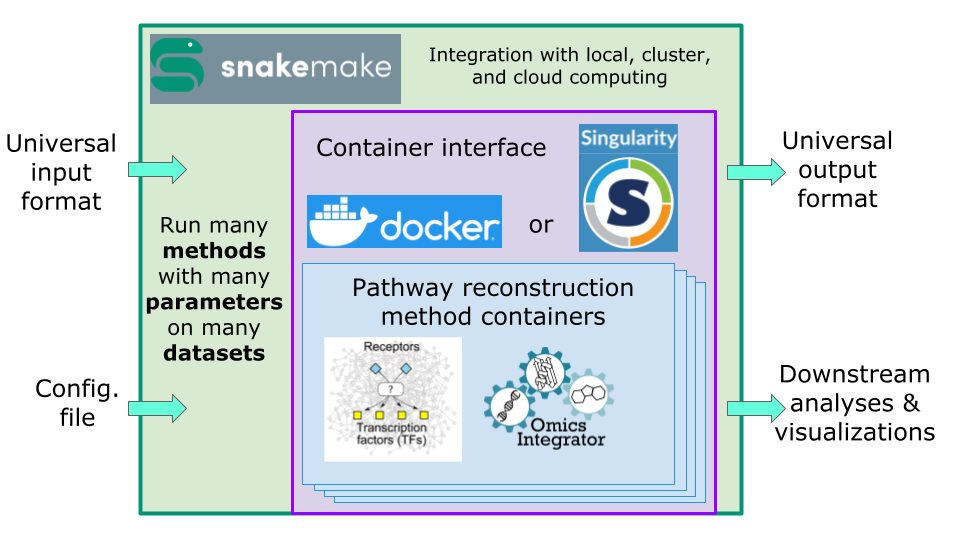
Signaling Pathway Reconstruction Analysis Streamliner (SPRAS) is a computational framework that unifies and simplifies the use of diverse pathway reconstruction algorithms.
SPRAS allows users to run multiple datasets across multiple algorithms and many parameter settings in a single scalable workflow. The framework automatically handles data preprocessing, algorithm execution, and post-processing, allowing users to run multiple algorithms seamlessly without manual setup. Built-in analysis tools enable users to explore, compare, and evaluate reconstructed pathways with ease.
SPRAS is implemented in Python and leverages two technologies for workflow automation:
Snakemake: a workflow management system that defines and executes jobs automatically, removing the need for users to write complex scripts
Docker: runs algorithms and post analysis in a containerized environment.
A key strength of SPRAS is automation. From provided input data and configurations, SPRAS can generate and execute complete workflows without requiring users to write complex scripts. This lowers the barrier to entry, allowing researchers to apply, evaluate, and compare multiple pathway reconstruction algorithms without deep computational expertise.